You’re staring at a 50-slide PowerPoint deck. The meeting starts in 15 minutes, or the exam is tomorrow. Your task is to grasp the core arguments, key data, and actionable conclusions—fast. Manually sifting through each slide is not an option.
This is where AI-powered PowerPoint summarization becomes a critical skill. It’s not about replacing deep understanding but about accelerating it, turning hours of review into minutes of focused insight. This guide provides a practical, tool-agnostic framework for using AI to summarize PowerPoint presentations effectively. You’ll learn the step-by-step process, how to choose the right tool, and how to integrate summaries into your workflow for real productivity gains.
Understanding What an AI PPT Summarizer Actually Does
An AI PowerPoint summarizer is a tool that uses natural language processing (NLP) to analyze the text and structure of your slides and extract the most important points. Its core function is to save you time and improve comprehension by distilling lengthy content into a concise overview.
It’s crucial to distinguish between two levels of analysis:
- Simple Text Extraction: This merely concatenates all visible text from the slides. It’s fast but often includes redundant titles, bullet points, and footer text without understanding their relative importance or relationship.
- Intelligent Summarization: This involves more advanced techniques. The AI analyzes the document's structure—using methods like TextRank or dependency-based noun phrases to identify key sentences—and understands context to generate a coherent summary. Advanced tools can even perform abstractive summarization, generating original sentences that capture the essence of the content rather than just copying phrases.
A capable AI summarizer doesn't just list facts; it identifies themes, conclusions, and the logical flow of the presentation, providing you with a narrative of the key insights.
Preparing Your PowerPoint for AI Analysis
The quality of your AI summary depends heavily on the quality of your input. Taking a few minutes to prepare your file can dramatically improve accuracy.
Optimize Slide Deck Structure for AI:
- Use Clear Hierarchies: Ensure your slide titles accurately reflect the content. Use consistent heading levels and bullet points. A well-structured deck helps the AI understand the relationship between main topics and subtopics.
- Minimize Decorative Text: Remove text in footers, headers, or logos that isn’t part of the core message. As noted in discussions on effective communication, the most visually dominant element should be your key takeaway, not a generic title.
Choose the Right File Format:
- PPTX vs. PDF: While many tools accept
.pptxfiles, converting your presentation to a PDF can sometimes yield more consistent results. PDFs standardize the layout and can prevent issues with proprietary PowerPoint elements. Some tools, like those mentioned in guides on how to summarize long PDFs, are specifically optimized for this format.
Handle Non-Text Elements Proactively:
- Images and Charts: Current AI summarizers primarily analyze text. If a critical insight is only presented in a chart or image, the AI will likely miss it. Best practice is to ensure key data points or trends from visuals are also mentioned in the slide title, a caption, or speaker notes.
- Speaker Notes: These are a goldmine for context. If your presentation includes detailed speaker notes, they provide invaluable narrative that isn't on the slides themselves. Using AI to generate live notes from your voice is an emerging feature, but existing notes should be included in your summarization input where possible.
Step-by-Step Guide to Summarizing with AI
This five-step process is designed to be universal, applicable whether you're using a dedicated tool or a general-purpose AI chatbot.
Step 1: Upload and Input
Your first decision is how to get your content into the AI system.
- Direct File Upload: The simplest method. Drag and drop your
.pptxor.pdffile into the tool's interface. This is best for dedicated summarizers like NoteGPT or ClipMind. - Copy-Paste Text: Open your PowerPoint, select all text from the Outline or Notes pane, and paste it into an AI chat interface like ChatGPT. This gives you control over what's included but is manual.
- Provide a Link: Some tools can summarize a presentation that's already hosted online (e.g., on Google Slides or a shared OneDrive link).
Pros and Cons:
- Upload: Highest fidelity for structure; handles formatting automatically.
- Copy-Paste: Allows you to curate content (e.g., exclude certain slides); depends on your ability to extract all relevant text.
- Link: Convenient for already-published decks; depends on link permissions.
Step 2: Configure Summary Parameters
Don't just click "summarize." Guide the AI to get the output you need.
- Choose Output Length and Format: Do you need a one-paragraph executive brief, a list of 5 key takeaways, or a detailed bullet-point summary mirroring the slide order? Specify this in your prompt or tool settings.
- Specify Focus Areas: Direct the AI's attention. For example: "Focus on the conclusions and recommended actions from slides 15-25" or "Summarize the technical specifications and comparison data."
Step 3: Generate and Review the Initial Output
Once the AI provides its summary, review it critically.
- Signs of a Good Summary: It should be coherent, cover all main section headings, capture core arguments, and omit minor examples or repetitive details.
- Common Pitfalls to Watch For:
- Missing Visual Context: The summary may ignore a key trend that was only shown in a graph.
- Misinterpreting Acronyms/Jargon: Domain-specific terms might be glossed over or explained incorrectly.
- Over-Simplification: Complex, nuanced arguments might be reduced to a point that loses their meaning.
Step 4: Edit and Refine for Accuracy
This is the non-negotiable, human-in-the-loop step. The AI provides a draft; you provide the expertise.
- Fact-Check: Quickly skim the original slides for the most critical data points or claims to ensure the summary is accurate.
- Improve Clarity: Rewrite awkward phrasing. Merge redundant points. Add a sentence to explain an acronym.
- Add Missing Insights: If the AI missed a crucial point from a chart or your own knowledge, add it manually.
Step 5: Export and Apply the Summary
Your summary is useless if it stays in the AI tool. Integrate it into your workflow.
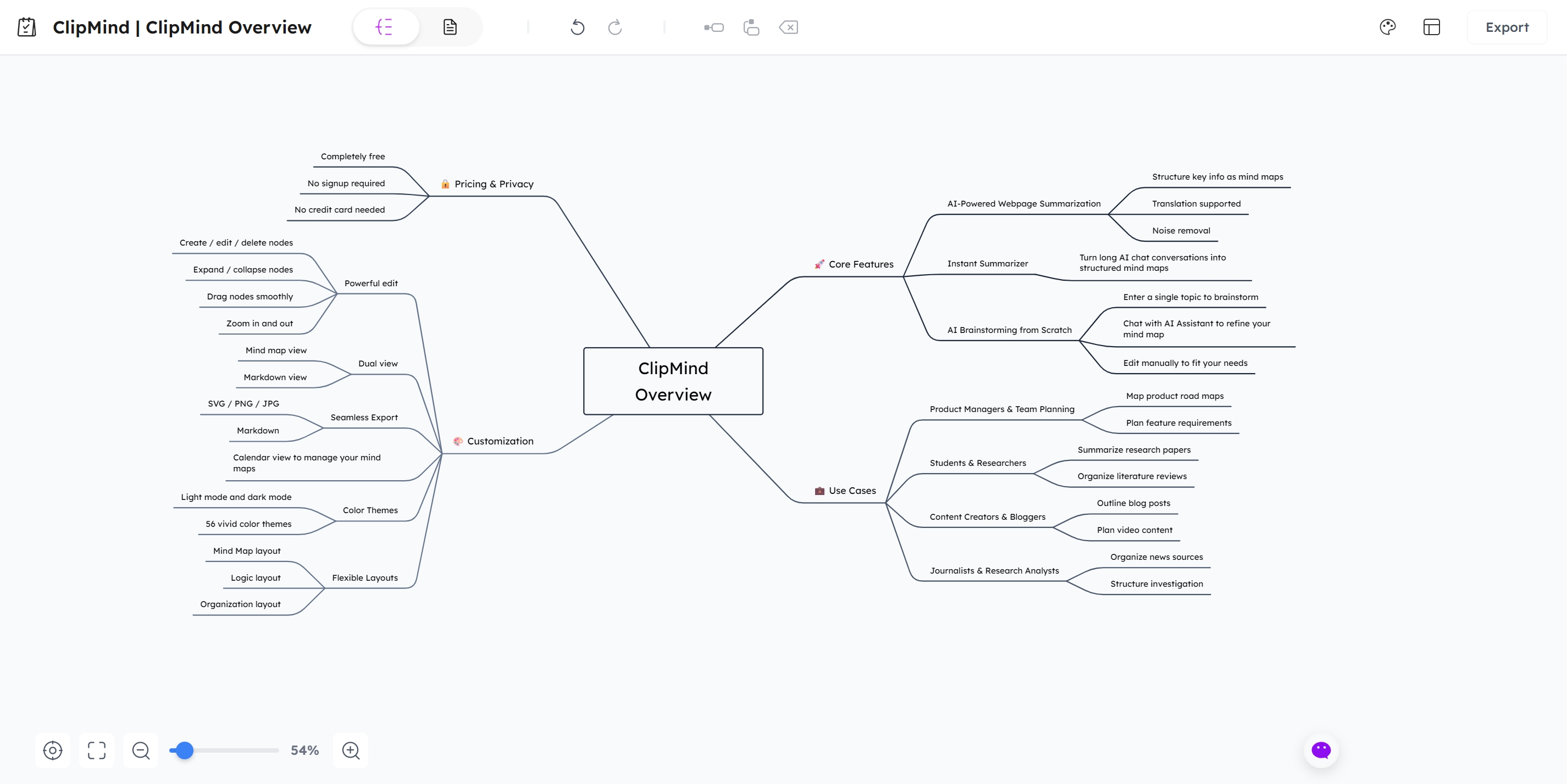
- Output Formats: Most tools allow you to copy text, export as a Markdown file, or download a document. Some, like ClipMind, offer a unique next step: transforming the linear text summary into an editable mind map. This lets you visualize relationships between ideas and reorganize them for better understanding.
- Next Steps: Use your refined summary to:
- Write a meeting recap or executive briefing.
- Create a study guide or flashcards.
- Populate a project management ticket or report outline.
- Serve as the basis for further brainstorming or synthesis with other documents.
Beyond Text: Advanced Techniques for Complex Presentations
What if your deck is full of charts, or you need to compare multiple presentations? Basic summarization hits its limits here.
Summarizing Data-Heavy Slides: For slides dominated by charts and graphs, you need a two-pronged approach. First, use the text summarizer for the surrounding analysis. Second, for the visuals themselves, consider using AI tools built for data analysis and visualization. You can describe the chart to an AI (e.g., "This bar chart shows Q3 sales across four regions") and ask it to infer trends or key takeaways, then manually add this insight to your overall summary.
Leveraging Speaker Notes and Comments: If available, always include speaker notes in your input. They contain the narrative glue that turns bullet points into a persuasive story. Some AI tools are beginning to integrate this context automatically for a richer summary.
Creating Comparative Summaries: Professionals often need to synthesize insights from multiple related presentations (e.g., competitor analyses, quarterly reports from different departments).
- Summarize each presentation individually using the steps above.
- Manually, or with AI assistance, identify common themes, conflicting data points, and unique insights across all summaries.
- Synthesize these into a single master summary or visual map. Tools like ClipMind are ideal for this, as you can create a master mind map and attach key nodes from each source presentation, building a connected knowledge base.
Comparing Top AI PPT Summarizer Tools
The right tool depends on your specific needs: output format, budget, and need for advanced features like visual output. Here’s a comparison of leading options.
| Tool | Primary Input Method | Key Output Options | Handling of Visuals | Cost Model | Best For |
|---|---|---|---|---|---|
| ClipMind | File upload (PPT, PDF), Webpage, AI Chats | Editable Mind Map, Text, Markdown, Image | Analyzes text hierarchy; visual output is a structured mind map | Freemium | Users who want to move from a linear summary to a structured, visual knowledge map for brainstorming and synthesis. |
| Microsoft Copilot in PowerPoint | Integrated within PowerPoint app | Text summary within PowerPoint | Can reference charts/images in slides | Part of Microsoft 365 subscription | Microsoft 365 users seeking quick, integrated summaries without leaving PowerPoint. |
| NoteGPT | File upload | Text summary, Mind Maps, Flashcards | Text-based analysis; can generate mind maps from summary | Freemium with credit limits | Students and learners who want summaries plus study aids like flashcards. |
| Knowt | File upload | Text summary, Flashcards, Practice Tests | Trained on academic materials; focuses on key concepts for testing | Freemium | Students focused on active recall and exam preparation. |
| SlideSpeak | File upload | Text summary, Can generate new presentations | AI can reference content to create new slides | Subscription plans | Users who need to both summarize existing decks and generate new presentation content quickly. |
| ChatGPT / Gemini | Copy-pasted text | Text summary | Purely text-based; cannot interpret embedded charts | Freemium / Subscription | Users comfortable with manual text input and prompt engineering for a flexible, general-purpose AI. |
Choosing Guidance:
- Students: Prioritize tools like Knowt or NoteGPT that create flashcards and practice tests.
- Analysts & Managers: Choose tools like ClipMind or SlideSpeak that support synthesis across documents and output to formats useful for reporting (mind maps, structured text).
- Casual Users: Start with the AI chatbot you already use (ChatGPT) or the tool integrated into your office suite (Microsoft Copilot).
Integrating Summaries into Your Workflow: From Notes to Knowledge
A summary is not an end product; it's a catalyst for action. Here’s how different professionals integrate AI summaries into their core workflows.
Use Case 1: The Student – From Lecture Slides to Study Guides A student uploads a week's worth of dense lecture slides into an AI summarizer. They receive a concise text overview of each lecture. Then, using a tool like ClipMind, they transform these summaries into a visual mind map for the entire module. This map reveals connections between lectures that weren't apparent before, forming the perfect basis for creating revision notes and understanding the subject holistically.
Use Case 2: The Business Analyst – Synthesizing Quarterly Reports An analyst receives PowerPoint decks from five different department heads for the quarterly business review. Manually comparing them is daunting. They use an AI summarizer to get a one-page brief from each. They then manually, or with AI assistance, extract key metrics, risks, and strategic initiatives from each brief into a consolidated table or a master mind map in ClipMind. This synthesis allows them to identify company-wide trends and prepare an executive overview in a fraction of the time.
Use Case 3: The Project Manager – Accelerating Team Onboarding A new project manager needs to get up to speed on years of past project documentation, often stored as presentation decks. Using an AI summarizer, they can quickly grasp the history, key decisions, and outcomes of each phase. These summaries form the basis of an onboarding wiki or a visual project timeline, allowing them to contribute meaningfully much faster.
Best Practices and Common Mistakes to Avoid
Do:
- Clean your slides of excessive decorative text before summarizing.
- Use the summary as a starting point for deeper inquiry and verification.
- Experiment with different prompts (e.g., "Summarize for an executive" vs. "List technical details").
- Check for accuracy, especially on numerical data and critical conclusions.
Don't:
- Rely solely on AI without reviewing and editing the output. As the BBC found, AI can inaccurately summarise content.
- Assume the AI captured every nuanced argument or visual insight.
- Use overly complex, poorly structured slides and expect a perfect, logical summary. Garbage in, garbage out.
- Ignore the speaker notes if they are available; they contain crucial context.
The Future of AI-Powered Presentation Analysis
The technology is moving beyond simple text condensation. Emerging trends point towards:
- True Multi-Modal Analysis: Future tools will better interpret data visualizations, images, and even design elements to assess presentation effectiveness, offering feedback on slide flow and visual communication.
- Real-Time Synthesis: Imagine AI providing live summaries during a webinar or generating a recap the moment a presentation ends.
- From Summarization to Strategic Insight: The next generation of tools, evolving from platforms like ClipMind, will act less as passive summarizers and more as active knowledge structuring platforms. They will help users not just understand a single presentation but connect insights across multiple sources, suggest gaps in logic, and help brainstorm new ideas based on the synthesized content.
Conclusion
AI-powered PowerPoint summarization is a powerful lever for productivity, turning information overload into manageable insight. The effective process involves preparation, guided generation, critical review, and purposeful integration of the output. Remember, the AI is a powerful assistant for comprehension, but your critical thinking and editorial judgment are what transform its draft into reliable knowledge.
Start by applying the five-step framework to your next lengthy deck. Choose a tool that aligns with your goal—whether it's a quick text summary or a structured visual map for deeper synthesis. The goal is to move from passive viewing to active knowledge building, and with the right approach, AI can be your essential partner in that process.
Learn More
- How to Create Mind Maps from Webpages: Complete Guide – Extend your summarization skills to online articles and reports.
- AI Mind Map Generator Review 2025: Top Tools for Visual Thinking – Compare tools that turn text into visual frameworks.
- Microsoft Support: Summarize your presentation with Copilot in PowerPoint – Official guide for using the built-in Microsoft 365 tool.
- Text Summarization for NLP: Best APIs and Models – A technical deep dive into how AI summarization works under the hood.
FAQ
Can AI summarize PowerPoint presentations with images and charts? AI summarizers primarily work with text. They will not automatically interpret data from a chart or describe an image. For best results, ensure any critical insight from a visual is also mentioned in the slide's text, title, or speaker notes. You can manually describe the visual to an AI as a separate step.
Is it safe to upload confidential presentations to AI summarizer tools? You must review the privacy policy of each tool. Some tools process files on their servers, while others may process them locally. For highly sensitive material, consider using tools that emphasize local processing or are part of your trusted enterprise ecosystem (like Microsoft Copilot within your company's Microsoft 365 tenant). Avoid using public chatbots for confidential data.
What's the difference between an AI summarizer and just copying the slide text myself? An AI summarizer uses natural language processing to identify and rank the most important sentences and concepts, removing redundancy and minor details. It provides a condensed, coherent overview. Manually copying text gives you all the content but none of the distillation, so you still have to do the cognitive work of identifying what matters most.
Which is better for summarizing PPTs: a dedicated tool or ChatGPT? Dedicated tools (like NoteGPT, ClipMind) are optimized for the task—they handle file uploads, often preserve slide structure better, and may offer specialized outputs like mind maps. ChatGPT is more flexible but requires you to manually extract and paste text, and you need to craft effective prompts. For simplicity and better formatting, a dedicated tool is often more efficient.
How can I use an AI PPT summary to create a mind map? Some tools, like ClipMind, have this functionality built-in. After generating a text summary, you can instantly convert it into a structured, editable mind map. With other tools, you can copy the text summary and paste it into a separate mind mapping application that supports AI-assisted creation or import from text.
Do AI summarizers work with languages other than English? Most major AI models and tools support multiple languages, but their accuracy is generally highest in English. Performance can vary significantly for other languages. Check the documentation of your chosen tool for its supported languages and any noted limitations.
Can I summarize multiple PowerPoints at once to compare them? Most tools are designed to summarize one document at a time. To compare multiple presentations, you would summarize each one individually. Then, you would need to manually or with AI assistance (e.g., by asking a chatbot to compare two text summaries) synthesize the findings across documents. Advanced knowledge structuring is where this synthesis becomes powerful.